Creating a Group (Average or Total) Rollup
Important: Unless specifically called out, this procedure assumes that all affected services are on the same site.
The following procedure explains a basic workflow for creating a group averaging or totalizing rollup. Creating a group rollup depends in large part upon your specific needs, the complexity of your system, and other variables. Be sure to have a clear idea of what purposes your group rollup will serve before you start to create it.
Although group rollups can be created for group averages, totals, and alarms, the process for creating group alarm rollups is different in some significant ways. If you want to create a group alarm rollup, see Creating a Group Alarm Rollup.
The following image shows a simplified group averaging or totalizing rollup creation workflow:
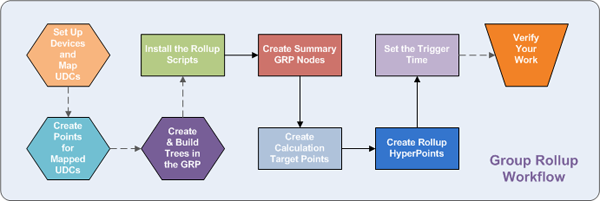
For more information, see the following subsections below:
- Before You Begin
- Install the Group Rollup Scripts
- Create a Summary Group Node
- Create a Calculation Target Point
- Create a Rollup HyperPoint
- Set the Rollup Trigger Time
- Check Your Work
For information about creating groups, see Group Manager Utility.
1. Before You Begin
Before you begin, make sure that you have taken the following steps:
- Install, add, and configure all required communication devices.
- Install, add, and configure all required remote devices.
- Map relevant uniform data codes (UDCs) for all relevant remote devices.
- Create points in the Point Service (PNT) for all relevant UDCs for all relevant remote device facilities.
- Use the Group Manager utility to create and build all required group hierarchies. Make sure that all hierarchies build correctly.
- Have a clear idea of the purpose of your group rollup(s).
If you have taken the steps above, proceed to 2. Install the Group Rollup Scripts.
2. Install the Group Rollup Scripts
The system library GrpRollup_Scripts.txt contains the scripts required to create group rollups. These scripts are the rollup code, a rollup template point, and a rollup trigger.
Note: Depending on your patched version of CygNet, you might have more than one instance of GrpRollup_Scripts.txt. If you have multiple versions of the file, repeat the To Install the Rollup Scripts procedure immediately below for each version from oldest to newest.
For more information about the system library GrpRollup_Scripts.txt or the three scripts within it, see Group Rollup Scripts.
To Install the Rollup Scripts
- Using Windows Explorer, browse to the CygNet\Utilities directory on the host server.
- Locate and double-click the CygNet Point Script Copy Utility program executable (PointCfgScriptCopy.exe).
- In the PointCfg Service drop-down menu, select the PNT to which you want to copy the rollup scripts.
- In the Target HSS Service drop-down menu, select the HyperPoint Scripting Service (HSS) to which you want to copy the rollup scripts.
- In the Script Copy Source (Copy From) area, select the From File option.
- Beside the From File field, click the Browse button and browse to the directory that contains the GrpRollup_Scripts.txt file. This is typically CygNet\Utilities\ScriptLibrary.
- Select the GrpRollup_Scripts.txt file and click Open.
- In the Script drop-down menu, select *All Scripts in This File*.
- In the Script Copy Target (Copy to) area, select To Default Service Point in Source.
- Click Test Copy to validate the copy. Closely read all test messages and resolve any errors before proceeding.
- If you are ready to perform a live copy, click Perform Copy to copy the scripts into the selected PNT and HSS.
- Click Yes if you are sure you want to copy the selected scripts.
When you are finished installing all instances of GrpRollup_Scripts.txt, proceed to 3. Create a Summary Group Node.

3. Create a Summary Group Node
The following procedure defines certain root-group and/or sub-group nodes in a Group Service (GRP) hierarchy as Summary (~U) node types. All facilities with specified UDCs subordinate to a summary node roll up to the summary node (see the Groups Rollups example). If a summary node is subordinate to yet another summary node, the subordinate summary node's data rolls up to its parent.
Root-group and sub-group nodes are not summary nodes by default, so you must define existing root- and sub-group node types as Summary (~U). Which root- and sub-group nodes you define as summary nodes depends on your specific needs. The Reference ID for summary nodes displayed in the GRP node property editor and Group Service Explorer is the facility ID of the summary GRP node's associated facility.
Note: A Summary node (as displayed in the Group Manager utility hierarchy pane) is not the same thing as a node with an attribute ~type Summary (~U). The following procedure refers to a node with an attribute ~type Summary (~U). For more information, see Node Category, Type, and Attribute Identifier.
To Create a Summary Group Node
- Using Windows Explorer, browse to the CygNet\Utilities directory on the host server.
- Locate and double-click the Group Manager program executable (GrpMgr.exe).
- Using the Group Manager utility, load the hierarchy for the correct GRP.
- Right-click in the hierarchy pane and click View As-Built Hierarchies. This opens the Group Service Explorer.
- In the Group Service Explorer, open the Hierarchy Type drop-down menu and select either Navigation Hierarchies or Web Hierarchies.
- Expand the navigation hierarchy for which you want to generate rollup values so that you can see all nodes in its branch.
- Open the Options drop-down menu at the bottom of the Group Service Explorer and select Show Details.
- Select a root- or sub-group node in the relevant branch that you want to become a summary node, click Options to open its drop-down menu, and click Edit Group Node. The selected node's details appear in the right-hand table. Which nodes you define as summary nodes depends on your specific needs. Keep in mind that all facilities with specified UDCs subordinate to a summary node roll up to the summary node.
- At the GRP node property editor that opens, click Edit Node.
- At the Node Type drop-down menu, select Summary (~U).
- In the Reference CygNet Entity area, ensure that the Type is Facility - CVS (E).
- In the Reference Site text box, ensure that the correct site name is entered here.
- In the Service text box, ensure that UIS is entered here.
- In the Reference ID text box, ensure that the correct facility is entered here. You can use the Browse button to select a rollup facility. The Reference ID for summary nodes is the facility ID of the summary GRP node's associated facility.
- Click Apply, then click OK to save your changes.
- Repeat steps 8 - 15 for each root- or sub-group node that you want to become a summary node until they are all converted to Summary (~U) types.
- When you are done changing root- and sub-group nodes to Summary (~U) types, go to the Group Manager utility, click Build, then click All for Group Service.
When you are finished creating summary nodes for all relevant rollup branches, proceed to 4. Create a Calculation Target Point.
4. Create a Calculation Target Point
A calculation target point is the current value service destination of the value calculated by the rollup HyperPoint described in step 5 below. The current value service is typically a UIS. The calculation target point resides in the PNT and makes the calculated value (total, average, or alarm) available for use and display in CygNet. The calculation target point current value indicates whether or not a rollup is successful by displaying an expected value or an error message.
Note: For every calculation target point you create, you must create a corresponding rollup HyperPoint to perform the calculation. The calculation target point long tag string (Site.Service:Facility_UDC) should be the same as that of the rollup HyperPoint, except that the service of the calculation target point long tag string is a UIS but the service of the rollup HyperPoint is an HSS. For example, the calculation rollup point long tag string MYSITE.UIS:ALLSTATES_VGY becomes MYSITE.HSS:ALLSTATES_VGY.
Note: Values are calculated from more than one current value service (typically a UIS) within a site if you have added all relevant Facility Sources.
To Create a Calculation Target Point
- Using CygNet Explorer, open the Point Service (PNT) in the service hierarchy.
- Right-click in the white space of the service pane and click New.
- On the General page, select the appropriate site and UIS combination as the Site.Service.
- In the Facility ID text box, type the name of a summary group node facility. You can also use the Browse button to search for the facility. The Facility ID corresponds to the Reference ID discussed in step 14 above.
- In the Uniform Data Code box, type the UDC of the data type you want to roll up. For instance, type PDIFF. You can also use the Browse button to search for the UDC. Using the Browse button filters your UDC results to only those currently mapped for the selected facility. If this target point is for an alarm, see Creating a Group Alarm Rollup.
- Make Point Type settings accordingly. For more information, see Point Types. If this target point is for an alarm, see Creating a Group Alarm Rollup.
Note: Because a calculation target point contains a calculated value, you might want to set the resolution of the value by going to the Scaling page and checking Enable Scaling. Then check to enable Set Decimal Places and type the number of decimal places in the text box. For more information, see PNT Editor – Scaling Page.
- Make any other relevant point settings, like descriptions and units, on the General page . For more information, see PNT Editor – General Page.
- Click the History page , then click to check Report History to VHS. For more information about the History page , see PNT Editor – History Page.
- When you are finished creating the calculation target point, click OK.
- Repeat steps 1 - 9 above for each calculation target point you require. Remember that each must eventually correspond to a rollup HyperPoint.
When you are finished creating a calculation target point, proceed to 5. Create a Rollup HyperPoint.
5. Create a Rollup HyperPoint
A rollup HyperPoint specifies the relevant calculation target point facility ID, the relevant UDC, and a calculation type (total, average, or alarm) by which to calculate a group rollup. The resultant calculation goes to the calculation target point.
Note: For every calculation target point you create, you must create a corresponding rollup HyperPoint to perform the calculation. The calculation target point long tag string (Site.Service:Facility_UDC) should be the same as that of the rollup HyperPoint, except that the service of the calculation target point long tag string is a UIS but the service of the rollup HyperPoint is an HSS. For example, the calculation rollup point long tag string MYSITE.UIS:ALLSTATES_VGY becomes MYSITE.HSS:ALLSTATES_VGY.
Note: Values are calculated from more than one current value service (typically a UIS) within a site if you have added all relevant Facility Sources.
For more information about HyperPoints, see HyperPoint Scripting.
To Create a Rollup HyperPoint
- Using CygNet Explorer, open the Point Service (PNT) in the service hierarchy.
- In the PNT service pane, right-click SYSLIB_GRP_ROLLUP_TEMPLATE and click New. Clicking New creates a copy of the SYSLIB_GRP_ROLLUP_TEMPLATE.
- In the New Point dialog box that opens, delete the contents of the Long Point ID and Point ID fields.
- In the Facility ID text box, type the name of your calculation target point facility to create a new facility on an ad hoc basis that uses an HSS as its service instead of a UIS or use the Browse button to select an existing facility. The facility ID you enter here must match that of the corresponding calculation target point you created in step 4 above.
- In the Uniform Data Code text box, type the UDC of the data type you want to roll up. For instance, type PDIFF. You can also use the Browse button to search for the UDC. Using the Browse button filters your UDC results to only those currently mapped for the selected facility. If this rollup HyperPoint is for an alarm, see Creating a Group Alarm Rollup.
- Click to check the HyperPoint box.
- Click to check the Activate Script box.
- In the Point Type box, ensure that String Input is selected.
- Click the Point Reference page and select a rollup type from the Type drop-down menu. Relevant options are Group Averager, Group Totalizer, <N/A>, and Group SYFACINFO Rollup. <N/A> is the default type and means totalizer. If this rollup HyperPoint is for an alarm, see Creating a Group Alarm Rollup.
- When you are finished creating the rollup HyperPoint, click OK.
- Repeat steps 1 - 10 above for each rollup HyperPoint you require. Remember that each must eventually correspond to a calculation target point.
If you are satisfied, proceed to 6. Set the Rollup Trigger Time.
To Specify a Different Calculation Target Point
Important: The following procedure is not best practice, nor is it required. Typically, to create a group rollup you must first create a calculation target point then create a corresponding rollup HyperPoint. These two points would have almost identical long tag strings, except that the service of the calculation target point long tag string is a UIS instead of an HSS. However, you can specify a different calculation target point for an existing rollup HyperPoint by making settings changes on the Point Reference page of the relevant rollup HyperPoint.
- Using CygNet Explorer, open the Point Service (PNT) in the service hierarchy.
- Double-click the rollup HyperPoint whose calculation target point you want to change.
- In the Properties dialog box that opens, click the Point Reference page.
- Click Edit.
- Enter new settings in the Site, Service, Point ID, and/or Long Point ID fields to specify a new calculation target point for the selected rollup HyperPoint. Keep in mind that your UIS and HSS will no longer correspond by name. For more information, see PNT Editor – Point Reference Page.
- When you are finished making settings changes, click Save.
If you are satisfied, proceed to 6. Set the Rollup Trigger Time.
When you are finished adding a rollup HyperPoint, proceed to 6. Set the Rollup Trigger Time.
6. Set the Rollup Trigger Time
The trigger time point (SYSLIB_GRP_ROLLUP_TRIGGER) is used to schedule the execution of the rollup code for all rollup points.
To Set the Rollup Trigger Time
- Using CygNet Explorer, open the Point Service (PNT) in the service hierarchy.
- Double-click the SYSLIB_GRP_ROLLUP_TRIGGER point to open its property sheet.
- Click the Application page and click Edit.
- Go to the General 1 field and enter a trigger time. The default is 10000 milliseconds. The value is always in milliseconds. If this property is blank or non-numeric, execution is manual.
- When you are finished setting the rollup trigger time, click Save.
When you are finished setting the rollup trigger time, proceed to 7. Check Your Work.
7. Check Your Work
Once you have created and configured all required summary GRP nodes, calculation target points, and rollup HyperPoints, check the results of your work to ensure that the averaging and/or totalizing rollups are operating correctly. Perform the two steps listed below. If this rollup is for an alarm, see Creating a Group Alarm Rollup.
Note: There might be additional ways to check your work besides those provided below.
To Double-Check Using a Manual Calculation
- Using CygNet Explorer, open the appropriate UIS.
- Locate a subset of UDC/facility combinations that you know are supposed to be aggregated by the rollup steps above.
- Refresh your UIS to see the latest results.
- Make a manual calculation of all child leaf nodes (facilities) of a summary GRP node to see if the calculation equals that of the summary GRP node displayed in the UIS. This might include consideration of child summary GRP nodes. For instance, if Summary Node A is configured to calculate a total of the CFGCO UDCs of two child leaf nodes (facilities), add the values for those two UDCs and compare it to the Summary Node A value for the same UDC. If the manually calculated value and the UIS-calculated are the same, Summary Node A is totalizing the two leaf nodes correctly.
To Double-Check the SUCCESS Value in HSS
- Using CygNet Explorer, open the appropriate HSS.
- Locate the rollup HyperPoint that you know is supposed to calculate the rollup you created above.
- Refresh your HSS to see the latest results.
- Check its Value column. If the value in the column is "SUCCESS", your HyperPoint (summary GRP node) is operating correctly. If another value is displayed, see Error Messages to troubleshoot the issue.
For information about troubleshooting groups and group rollups, see Troubleshooting.
If you are satisfied with the results of your rollups and tests, consider fine-tuning your rollups by using filters. For more information, see Filtering a Group Rollup.

